
Transparency● LiveFlagship platforms
Solution Lens 2.0
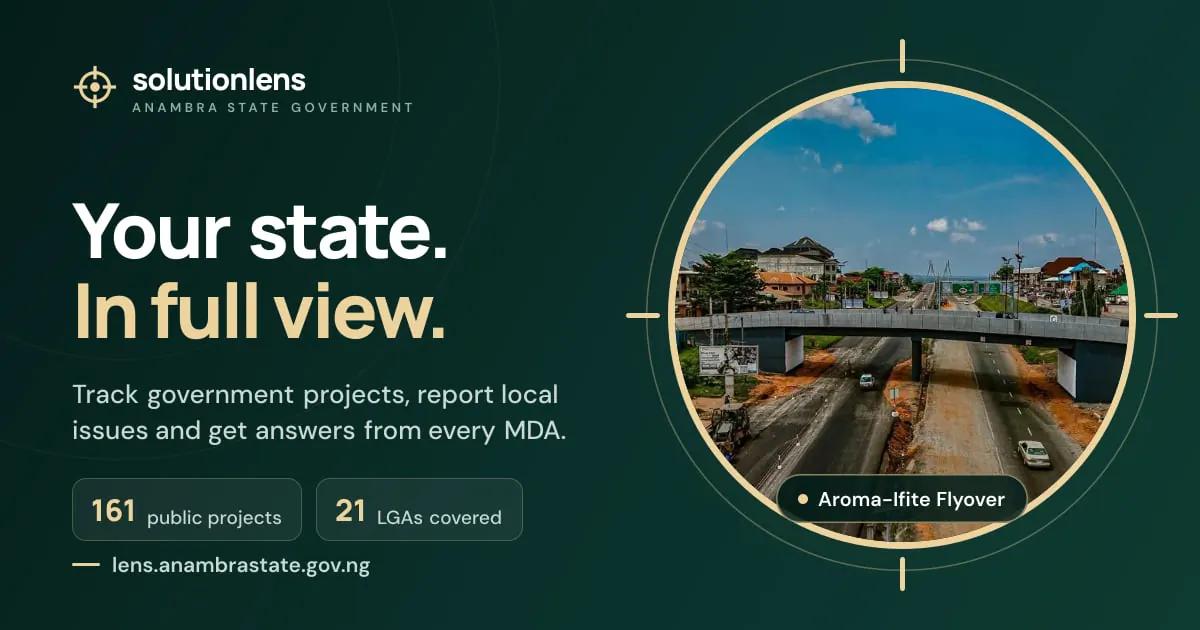
Every public project, in the hands of anyone with a phone.
 Developed by the Anambra State ICT Agency
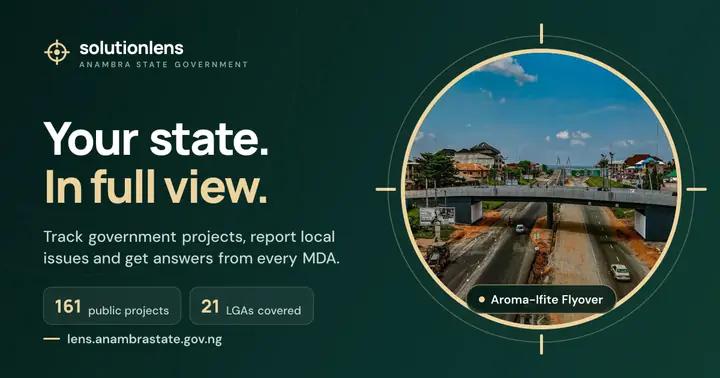
The state's public window on government projects and civic participation: see every project with its contractor, stage and photographs; report an issue and follow it to the fix; request information under FOI; sign petitions, debate and vote in polls.
What it does
All 14 features
- Project map and register with contractor, stage, location and photographs: more than 200 public projects.
- '21 LGAs. One Anambra.': an interactive atlas of all 21 local government areas.
- Civic reports in four steps (what, where, photo, review): Lens checks the location, works out the LGA, looks for duplicates and routes it to the responsible desk officer; the citizen can confirm the fix or reopen it. References look like LNS-2026-000123.
- Freedom of Information requests online, with a statutory clock staff can see.
- Petitions with support thresholds, moderated debates, polls and surveys with ballot receipts.
- Directory of desk officers in 53 ministries, agencies and councils.
- Insights and open data: LGA maps, delivery charts and downloadable data.
- Share cards for WhatsApp, Facebook, X and Telegram.
- Telegram bot: report an issue with photo and location, track your reports, find projects near you.
- Command Centre for officials: statewide map shaded by LGA, delivery by sector, at-risk projects, approvals and priority cases.
- Newsroom: the Ministry of Information publishes to the state website after a second person approves.
- Two-person approval before any project is published, and a tamper-evident audit log with 'Verify the chain'.
- Nine integrations with other state systems, including DocTracker, Smart Anambra, the state website, ASEPS, ASHEFAMU, ICT support, The Office, NORA and the state login.
- Installable on a phone and usable offline.
How it works
Step by step, start to finish
A citizen report from submission to closure
Step 1 of 8
Who uses it
People it serves
- Citizens
- Desk officers in every ministry
- The Ministry of Information
- Executives
In practice
What it looks like
A student opens the map of her LGA and sees the contractor, stage and latest photo of the health centre behind her school.
A resident reports a broken culvert from Telegram with a photo and location, and follows it to the fix.
A journalist files an FOI request and watches the statutory clock.
Why it matters
What changes
- Rumours answered with records
- Oversight by anyone with a phone
- Every report routed to a named desk
Connected to
Works together with
 DocTrackerEvery road contract, from budget line to final payment, with nowhere left to hide a delay.
 Road TrackerEvery state road, every day, in public.
 GRM 2.0A complaint with a number cannot be lost.
 The State Government websiteThe state's front door, rebuilt without losing a single key.
 ASEPSA ghost cannot smile at a camera.
 ASHEFAMUThe state knows who may treat its people.
 ICT SupportOne place for every ministry's ICT problem.
 The OfficeA government agency where the paperwork chases itself.
 NORAOne intelligence running through the whole government.